
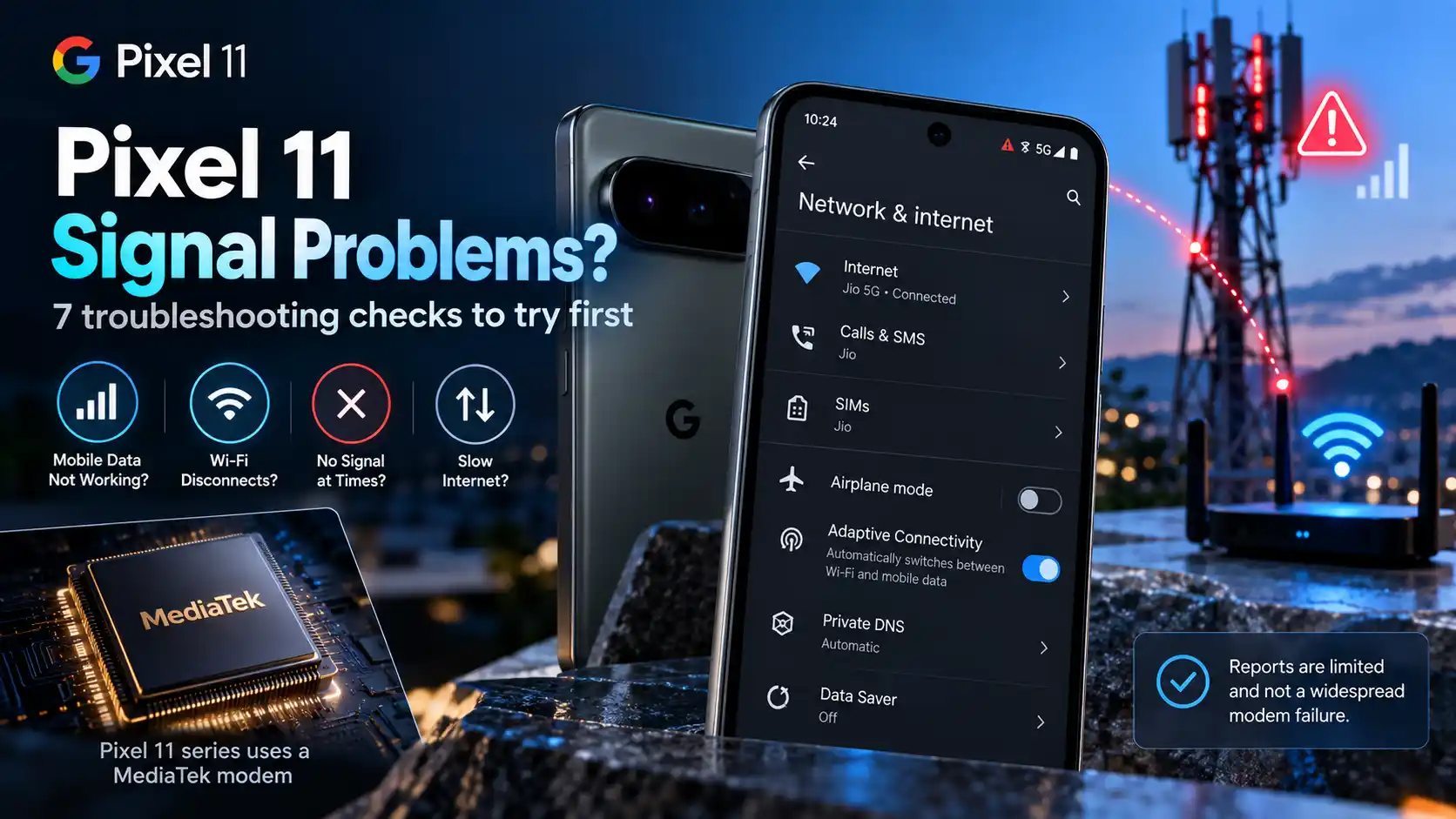
Pixel 11 Signal Problems? Try These 7 Fixes Before Returning It
One of the notable changes Google introduced with the Pixel 11 series is the shift to a new MediaTek modem. While connectivity complaints are lower compared to previous generations, some users are still encountering weak 5G signals, dropped mobile data, and unreliable Wi-Fi.
Before giving up on the phone or starting a return, Android Authority recommends trying these seven software troubleshooting steps:
1. Toggle Airplane Mode
A simple modem refresh often restores broken cellular handoffs:
-
Open Quick Settings and tap Airplane mode (or navigate to Settings > Network & internet > Airplane mode).
-
Leave it enabled for a few seconds, then turn it off to force the modem to reconnect to the nearest cell tower.
2. Reinsert Physical SIM or Toggle eSIM
-
Physical SIM: Eject the SIM tray, inspect the physical card for wear, dust, or damage, and reinsert it cleanly.
-
eSIM: Navigate to Settings > Network & internet > SIMs, tap your active eSIM profile, toggle it Off for a few seconds, and turn it back on to re-provision the connection with your carrier.
3. Temporarily Disable Adaptive Connectivity
Adaptive Connectivity automatically switches between Wi-Fi and mobile data based on connection quality, but aggressive auto-switching can trigger unexpected data drops.
-
Go to Settings > Network & internet > Adaptive Connectivity.
-
Turn off both Auto switch to mobile network and Optimize network for battery life.
4. Enable Data Roaming
If you commute or travel into secondary coverage areas, your phone might drop data because roaming is blocked.
-
Go to Settings > Network & internet > SIMs.
-
Select your active SIM and ensure Roaming is toggled ON. (Note: Verify with your carrier to prevent unwanted roaming charges.)
5. Check and Adjust Mobile Data Limits
An active Android data limit will cut off mobile data completely once hit.
-
Navigate to Settings > Network & internet > SIMs > Data warning & limit.
-
Check if a hard limit is blocking your connection, and temporarily disable it to verify if mobile data resumes.
6. Turn Off Custom Private DNS
A misconfigured or unresponsive Private DNS server can block domain resolution, making your connection appear offline even with active signal bars.
-
Go to Settings > Network & internet > Private DNS.
-
Temporarily select Off to see if internet access returns.
7. Reset Mobile Network Settings
If the steps above do not clear the issue, reset your network configurations back to factory defaults without losing personal files or photos:
-
Navigate to Settings > System > Reset options.
-
Tap Reset mobile network settings to restore stock carrier profiles and APN settings.
Next Steps: If issues persist after trying all seven steps, the problem may stem from local carrier outages, a faulty SIM card requiring carrier replacement, or a hardware defect eligible for a warranty claim.