
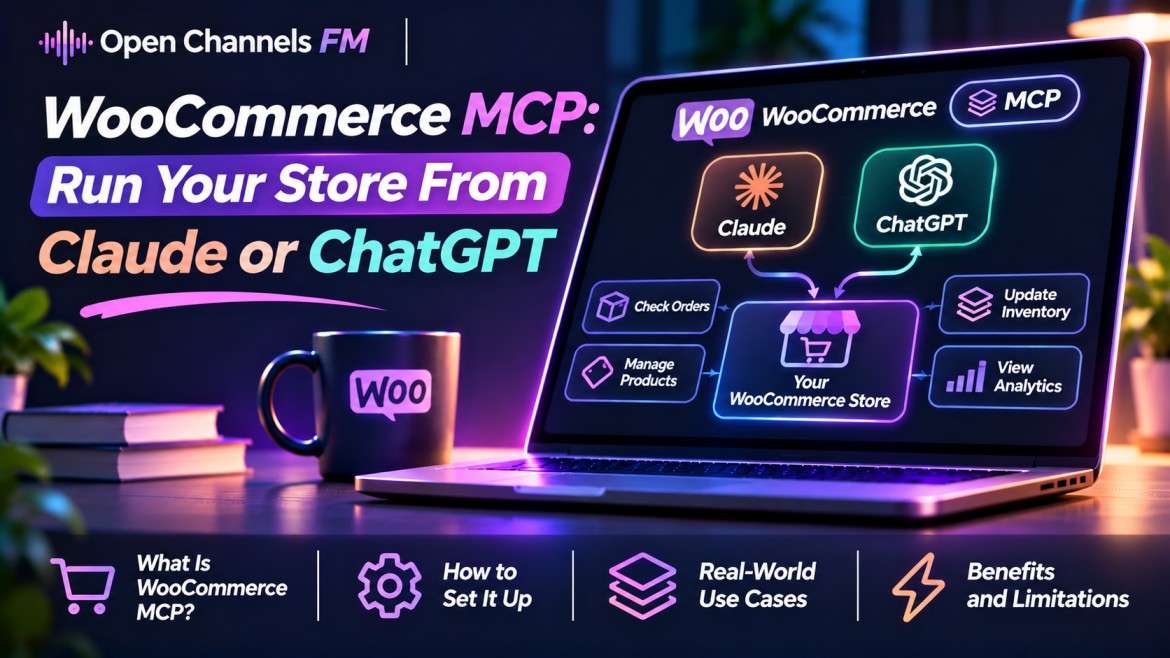
Conversational E-Commerce: Run Your WooCommerce Store From Claude or ChatGPT
Managing a busy WooCommerce store usually means living inside the WordPress admin dashboard: clicking through paginated order lists, manually checking stock levels, issuing refunds, generating coupon codes, and adjusting variation pricing.
By connecting WooCommerce to the Model Context Protocol (MCP), you replace repetitive admin navigation with natural language commands.
Instead of opening five separate tabs, you can open Claude Desktop, ChatGPT, or Cursor and type: “Find all unfulfilled orders from this morning over $100,” or “Generate a 15% flash sale coupon for the weekend and lower stock alert thresholds on winter jackets.”
Here is how WooCommerce MCP works, what it can do, and the best ways to hook it up to your store.
What WooCommerce MCP Actually Unlocks
MCP exposes your store’s database operations—orders, products, inventory, customers, and coupons—as callable tools that an external AI assistant can execute dynamically.
Instead of acting as a generic copywriter, your AI assistant turns into an active store operator:
-
Triage Orders & Fulfilment: Ask for real-time order rollups, check tracking statuses, identify delayed shipments, or flag high-value orders awaiting processing.
-
Instant Inventory & Catalog Updates: Query which items are running low on stock, batch-update product tags, revise product descriptions, or adjust prices across entire product categories in seconds.
-
Automated Customer Operations: Lookup customer purchase histories, check lifetime spend, generate custom store credits or coupons, and draft support responses with exact order context in hand.
-
Instant Store Analytics: Instead of exporting messy CSV reports, prompt your AI to analyze weekly average order value (AOV), top-selling variations, or refund rates by product category.
The Three Ways to Connect
Depending on your comfort level with server setup, there are three primary paths to link WooCommerce to your AI client:
1. Official WooCommerce MCP Extension (Best for Turnkey E-Commerce)
Available on the official WooCommerce Marketplace (built by W7S), the MCP for WooCommerce extension turns your site into a dedicated MCP server built specifically around store entities.
-
The Pitch: Generates a one-click connection bundle (
.mcpb) for Claude Desktop and a direct Streamable HTTP / SSE setup for ChatGPT. -
Key Feature: Granular Tool Packs—allowing you to toggle off entire categories of tools (e.g., enable Order and Product reads, but strictly block refunds, deletions, and customer PII exports).
2. All-in-One WordPress MCP Plugins (Best Free & Multi-Use)
Plugins like Easy MCP AI or WPVibe include WooCommerce modules alongside general post drafting and SEO auditing tools.
-
The Pitch: If you already use an MCP server to manage your blog, you don’t need a separate subscription for your store.
-
Key Feature: Easy MCP AI is 100% free and self-hosted, including audit logging and rollback snapshots so you can review every automated modification.
3. Native WooCommerce Developer Preview (via MCP Adapter)
WooCommerce introduced core developer preview abilities that bridge directly into the official WordPress MCP Adapter.
-
The Pitch: Built directly on core WordPress “Abilities” architecture without relying on commercial third-party code.
-
The Catch: Currently in developer preview with a limited tool surface (primarily basic product and order lookups) and requires running a local Node proxy bridge.
Quick Setup: Connecting to Claude Desktop
Connecting takes under five minutes using standard API keys or SSE endpoints.
-
Generate API Credentials: In your WordPress dashboard, go to WooCommerce > Settings > Advanced > REST API (or your MCP plugin’s dedicated connection screen) and generate an API key.Tip: If you only want the AI to analyze data and check orders, set permissions strictly to Read-Only.
-
Add to Claude Desktop: Open your
claude_desktop_config.jsonfile:-
macOS:
~/Library/Application Support/Claude/claude_desktop_config.json -
Windows:
%APPDATA%\Claude\claude_desktop_config.json
-
-
Configure the Server Entry:JSON
{
  "mcpServers": {
    "woo-store": {
      "command": "npx",
      "args": [
        "-y",
        "@automattic/mcp-wordpress-remote@latest",
        "--url", "https://yourstore.com",
        "--username", "your_store_user",
        "--password", "xxxx xxxx xxxx xxxx"
      ]
    }
  }
}
(Or paste the direct Streamable HTTP / SSE endpoint URL if using an extension like MCP for WooCommerce or ChatGPT’s plugin menu). -
Restart & Verify: Restart Claude Desktop or ChatGPT. The hammer icon will show your new store tools (
wc_get_orders,wc_update_product,wc_list_products, etc.).
Non-Negotiable Rules for E-Commerce AI
Giving an AI assistant access to a production storefront with live inventory and real customer credit cards demands strict safeguards:
-
Least-Privilege API Keys: Never link an AI agent using an unrestricted Administrator account. If you only want help triaging support and checking shipment statuses, issue a Read-only key.
-
Blacklist Destructive Actions: Disable tool permissions for permanently deleting products or processing bulk financial refunds unless an operation requires explicit human confirmation.
-
Mask Customer PII: Choose MCP implementations that automatically redact customer billing addresses, full credit card identifiers, and phone numbers in their debug and activity logs.
The Takeaway
Running an e-commerce store is notoriously admin-heavy.
With WooCommerce MCP, the routine friction of hunting through back-office menus evaporates. You get a 24/7 store manager that lives right in your chat bar—ready to check stock, flag problem orders, and run store analytics in plain English without you ever touching
wp-admin.